MANUAL ACTIVATION
If automatic activation is not available or your Auto-Key does not work, we will need your current
Registration ID to create a Manual License Key for you.
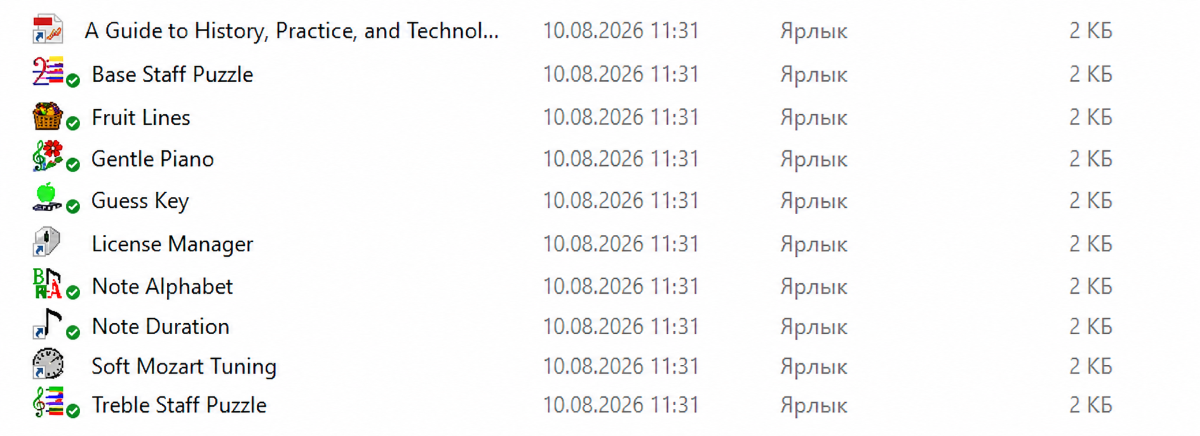
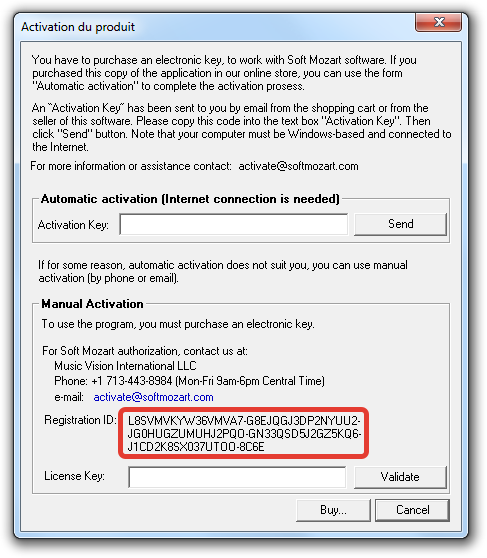
Open any marked Soft Mozart module.
The
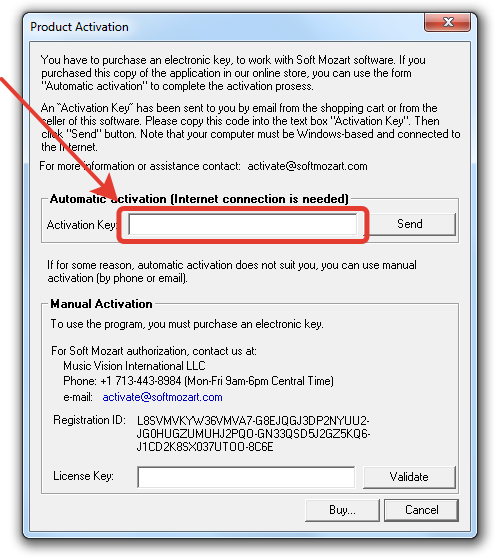
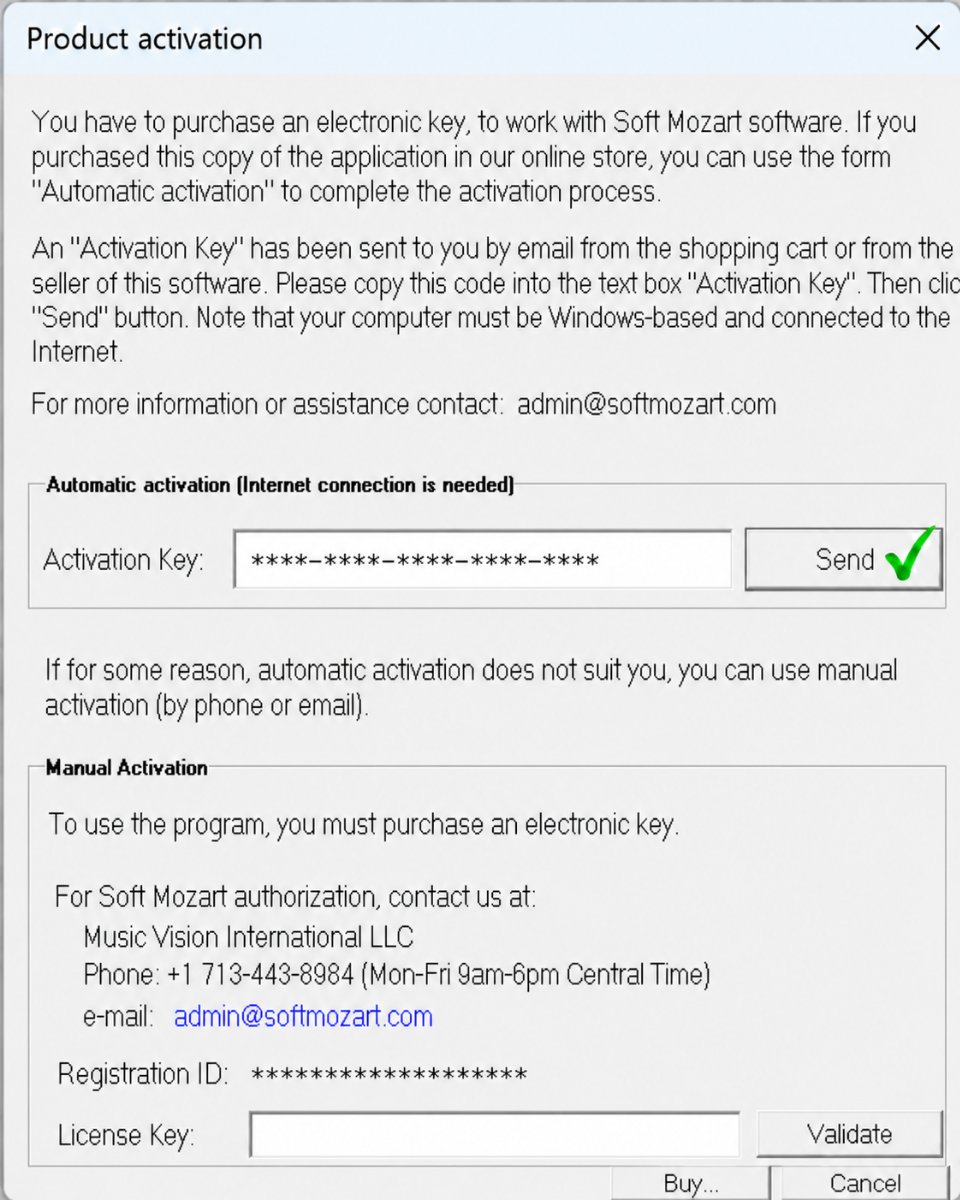
Product Activation window will appear:
Find the
Registration ID in the Manual Activation section.
Please select the entire Registration ID with your mouse, COPY it, and PASTE it into your email to us.
Please do not type the Registration ID manually.
Do not send a photo or screenshot of the Registration ID. We need the ID copied and pasted as text.
You may also watch this short video instruction:
After we receive your Registration ID, we will create and send you a
Manual License Key.
Copy the Manual License Key we send you and paste it into the
License Key field in the Manual Activation section.
Then click
VALIDATE.
IMPORTANT ABOUT YOUR REGISTRATION ID
A Manual License Key is not a universal password for the program. It is generated specifically for the
Registration ID currently displayed by your Soft Mozart program.
In some cases, the Registration ID may change after changes to the computer or its system configuration.
When the Registration ID changes, a previously issued Manual License Key may no longer validate. In some cases, the Auto-Key may also stop working.
For this reason, whenever you contact us for manual activation, please send us the
current Registration ID displayed in the activation window, not a Registration ID saved from an earlier activation.
If the activation is successful, no further action is required.